

Anthropic's new Claude add-in for Microsoft PowerPoint sounds promising on paper. The idea of generating presentations directly inside PowerPoint is exactly the kind of AI workflow many professionals have been waiting for. But after trying it, I found that the experience still feels limited, unreliable, and not quite polished enough for people who want to build decks quickly.
The good news is that there's already a stronger option available. In this article, I'll walk through how Claude's PowerPoint add-in works, where it falls short, and why Plus AI stands out as a better alternative for creating polished presentations directly inside PowerPoint.
Let's get started.
Claude for PowerPoint
Claude add-in can be installed in the web version of MSFT PowerPoint.
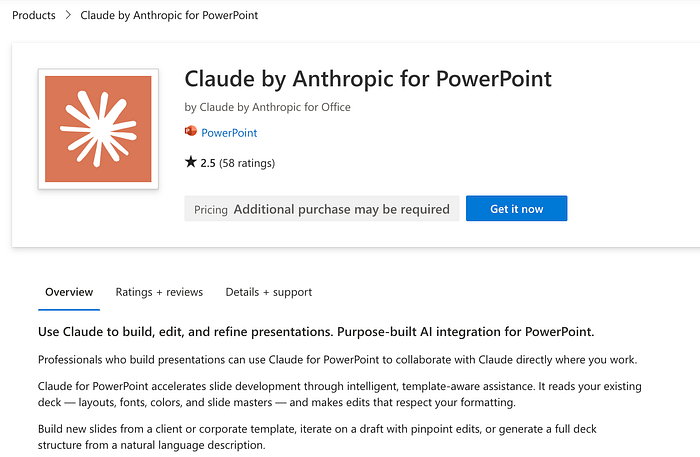
You can also install the add-on from within the PPT dashboard itself. In the Home > Add-ins tab, search for "Claude" and install it.
You need to sign in to your Anthropic account and give access to PPT.
- Access your Anthropic profile information
- Contribute to your Claude subscription usage
- Upload files on your behalf
- Access profile information for all members in your organization
If all of these permissions look good to you, authorize it and proceed by following the on-screen instructions. This is what your dashboard should look like:
Alright, now we're ready to generate slide decks with Claude.
To start, choose your preferred model. I recommend using Claude 4.6 Opus since it's the latest model from Anthropic today. Next, feed a sample prompt. Suppose we want a social media growth report, and let Claude build the presentation for us.
Prompt: Turn the social media growth report below into a beautiful presentation
But remember: it is not always going to give you a perfect presentation. You still have to manually review the slides. You may need to tweak the design or content to ensure everything is correct and visually appealing.
A few important observations:
- You can't install the add-in if you are not a paying subscriber.
- The AI bot often crashes and fails mid-generation, so you need to redo the whole thing.
- There is no history, so you can't go back or undo the changes.
- It works within your existing security framework, but Claude can make mistakes. Always review changes before finalizing, especially for critical deliverables.
- Enable the "Accept all edits" option if you don't wanna get annoyed by the frequent prompt.
A Better Alternative to Claude Add-on
Now, let's talk about another AI-powered presentation generator add-on for PowerPoint called Plus AI. It integrates generative AI directly into your workflow. It's built to help you create slides faster without leaving PowerPoint or relying on external websites.
You can download it from the Marketplace.
Once installed, the Plus AI tool should appear in the Add-ins section of the toolbar. Click the Plus AI icon from your add-in list. A panel will appear on the right sidebar, giving you multiple options for building slides.
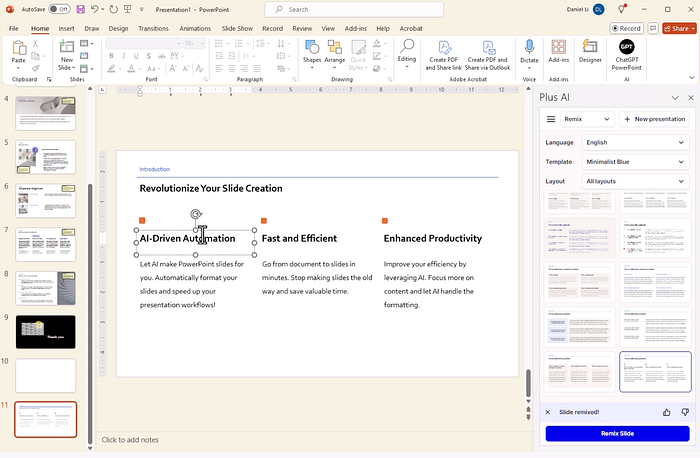
At first glance, you can immediately see the difference in how much feature Plus AI has compared to Claude.
You can start from scratch, refine an existing deck, or upload a document for Plus AI to handle both the writing and design.
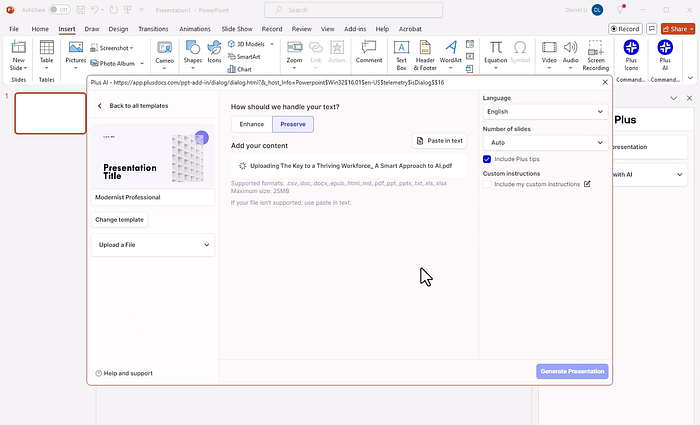
Uploaded files are processed securely. The platform follows strict security standards and has achieved SOC 2 Type II compliance. If you are curious, you can read more about their security practices on their security page.
For example, uploading a document can instantly generate a 10-slide deck that matches a consistent design. From there, you can keep adding slides while maintaining the same style.
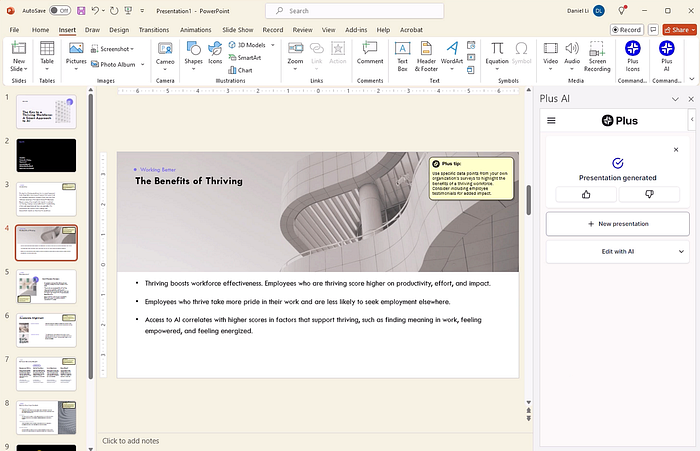
Plus AI also lets you edit with AI assistance and collaborate with others directly in PowerPoint.
What I like most about Plus AI is that it is seamlessly integrated into PPT. You don't need to learn a new platform or figure out a new workflow. You open your deck, write a prompt, and it does the rest.
That kind of workflow really matters when you're short on time or juggling multiple projects.
When it comes to the pricing comparison, the Claude add-on requires at least a Plus subscription to use. On the other hand, Plus AI gives you a free 7-day trial without any upfront cost. It means you can explore the features before committing to a subscription plan.
It's still puzzling to me why big companies like Microsoft and Google fail to implement effective AI automation features in their presentation tools. I mean, Claude and Plus AI are third-party add-ins, but they work so much better than the native tools. They offer more advanced features and are relatively cheaper.
Also, Plus AI offers a bunch of high-quality templates and a built-in AI image generator that can really level up the aesthetics and uniqueness of your slide deck.
Anyway, go try Plus AI and Claude add-ons to see which tool works best for your specific use case. Let me know your thoughts in the comments!

This story is published on Generative AI. Connect with us on LinkedIn and follow Zeniteq to stay in the loop with the latest AI stories.
Subscribe to our newsletter and YouTube channel to stay updated with the latest news and updates on generative AI. Let's shape the future of AI together!
