Hermes Agent — From Installation to Mastery & Troubleshooting Guide
Friendly disclaimer: This article was written in May 2026. AI moves fast — if anything here is wrong, you're probably right. Read accordingly.
Preface
Not long ago, a wave of AI enthusiasts started "raising lobsters" — virtual assistants that went through the naming journey of Clawdbot → Moltbot → openclaw, affectionately nicknamed "the lobster" after its mascot. A whole ecosystem of forks and derivatives followed, spurring broader AI assistant development. Among them, Hermes has recently emerged as a strong contender that may well surpass its predecessor, openclaw.
Why Hermes over openclaw?
- Native Telegram Gateway — Built-in bot integration, no extra middleware layer needed. Set it up once and call your agent from your phone anytime.
- Cron Scheduling — Natural language task scheduling that lets the agent proactively push information to you, rather than passively waiting for questions.
- Flexible Toolset Control — Separate tool permissions per platform (CLI / Telegram), balancing capability with safety.
- MCP Server Integration — Connect to any MCP server for powerful extensibility.
- Tool Call Error Recovery —
tool_call_repairautomatically fixes malformed function calls, especially useful with local models. - AGENTS.md Behavior Definition — Similar to CLAUDE.md, lets you customize agent personality and task rules.
1. Installation
System Requirements
Item Minimum OS macOS 12+ / Ubuntu 20.04+ Python 3.10+ Node.js 18+ Disk Space 2 GB (excluding models)
One-Line Install
curl -fsSL https://raw.githubusercontent.com/NousResearch/hermes-agent/main/scripts/install.sh | bashReload your shell after installation:
source ~/.zshrc   # zsh
# or
source ~/.bashrc  # bash
Verify Installation
hermes --version
hermes doctor     # Auto-diagnose environment issues
Common Installation Failures
❌ command not found: hermes → PATH not set. Add it manually:
export PATH="$HOME/.hermes/bin:$PATH"
echo 'export PATH="$HOME/.hermes/bin:$PATH"' >> ~/.zshrc
❌ Python version too old → Install 3.11 via pyenv:
brew install pyenv
pyenv install 3.11
pyenv global 3.11
2. Initial Setup
hermes setup # Interactive wizard, ~5 minutesConfig location: ~/.hermes/config.yaml
3. Provider Configuration
⚠️ Risk Warning (Local LLMs): Running large models locally requires adequate RAM. On a Mac Mini M4 with 24 GB RAM, running Gemma 4 26B maxed out memory and took 3 minutes per response. With Hermes overhead added, it's even slower. Unless your workflow doesn't care about response time, cloud LLMs are strongly recommended. Unless you have a machine with 128 GB+ RAM, that is.
A. Ollama (Local)
# Make sure Ollama is running
ollama serve   # Default port 11434
# Check available models
ollama list~/.hermes/config.yaml:
provider: ollama
model: gemma4:26b   # or gemma4:e4b
ollama:
  base_url: http://localhost:11434
  timeout: 300   # Large models are slow, increase this
Recommended Local Models (ranked by tool calling capability)
Model Size Tool Calling Speed Best For qwen3:32b 20 GB ⭐⭐⭐⭐⭐ Slow Complex tasks qwen3:14b 9 GB ⭐⭐⭐⭐ Medium Daily use gemma4:26b 17 GB ⭐⭐⭐ Slow Experimentation gemma4:e4b 9.6 GB ⭐⭐⭐ Medium Lightweight experiments mistral:7b 4.1 GB ⭐⭐⭐⭐ Fast Quick tests
⚠️ The gemma4 series has unstable function calling support — tool call JSON occasionally breaks. Use the qwen3 series for production.
B. Google AI Studio (Free Gemma / Gemini)
AI Studio lets you use Gemma and Gemini models for free — no local setup needed.
- Go to https://aistudio.google.com and get an API Key.
- Configure:
provider: google
model: gemma-4-31b-it   # or gemini-2.0-flash-exp (generous free quota)
google:
  api_key: "YOUR_AI_STUDIO_API_KEY"
♨️ Note: For Google's open-source Gemma models, select "Enter custom model name" and enter the full model name:
gemma-4-26b-a4b-itgemma-4-31b-itgemma-3n-e2b-itgemma-3n-e4b-it
C. Switching Models (CLI Commands)
# Temporary switch for current session
/model gemma4:e4b
# Permanent global switch
/model gemma4:e4b --global
# List available models
/models
4. Telegram Gateway Setup
Step 1: Create a Bot
- Search for
@BotFatherin Telegram. - Send
/newbot. - Enter a display name (anything you like).
- Enter a username (must end in
_bot). - Copy your token — format:
123456789:AAHxxxxxxx
Step 2: Configure
nano ~/.hermes/config.yamlAdd:
telegram:
  bot_token: "123456789:AAHxxxxxxx"
Or write to .env:
echo 'TELEGRAM_BOT_TOKEN=123456789:AAHxxxxxxx' >> ~/.hermes/.envStep 3: Start the Gateway
hermes gateway start     # Foreground
hermes gateway install   # Run as background service
Verify status:
hermes gateway statusExpected output:
+------------------------------------------+
|          Gateway Status                  |
+------------------------------------------+
  Messaging Platform Configuration:
    ● Telegram     Connected ✓
Step 4: Set Telegram Home Channel
Send this to your bot in Telegram:
/sethomeCron job results and proactive pushes will be sent to this chat.
5. Tools Configuration
Check Currently Enabled Tools
/toolsWhy Isn't My Tool Call Executing?
If Hermes generates <tool>terminal</tool> in its response but doesn't execute it, the model wants to use a tool but there's no executor configured. You need to set toolset in config.
Telegram Toolset Configuration
The default Telegram toolset is safe (web + vision only, no terminal).
Option 1: Interactive
hermes toolsSelect Telegram → check terminal, web, file.
Option 2: Edit Config Directly
platform_toolsets:
  cli: web,terminal,file,vision
  telegram: web,terminal,file
Then restart:
hermes gateway restartAll Available Toolsets
Toolset Description Safety web Browser, search ✅ Safe terminal Execute shell commands ⚠️ Use with care file Read/write local files ⚠️ Use with care vision Image understanding ✅ Safe code Code execution ⚠️ Use with care
Terminal Tool Timeout
Local models can be slow, causing curl commands to time out before completion:
terminal:
  backend: local
  timeout: 300   # Default is 180s, increase to 300
6. Auxiliary Configuration
Auxiliary services give the agent extra capabilities.
web_extract — Webpage Content Extraction
Use Tavily as the provider for smarter content extraction than raw curl:
auxiliary:
  web_extract:
    provider: tavily
    api_key: "YOUR_TAVILY_API_KEY"
Get a Tavily API Key: https://tavily.com (free tier available)
Why Use Tavily?
Method Pros Cons No config (raw curl) No key needed Can't handle JS-rendered pages; messy output Tavily Clean extraction, JS support Requires API key
7. Cron Scheduling
Example: Daily Pre-Market Analysis
Option 1: Natural Language (via Telegram)
Just tell your bot:
Every weekday at 8:30 AM, check today's pre-market highlights: (1) US market close, (2) Taiwan futures overnight, (3) institutional investor flows, (4) major events today. Summarize and send to me.
Hermes will automatically create the cron job.
Option 2: CLI
hermes cron add "30 8 * * 1-5" \
  --prompt "Search today's pre-market summary including US close, Taiwan futures, and institutional flows"
Managing Cron Jobs
hermes cron list          # List all scheduled jobs
hermes cron remove <id>   # Delete a job
Cron Expression Reference
# min  hour  day  month  weekday
  30    8     *    *     1-5    → Weekdays at 08:30
  0     9     *    *     *      → Daily at 09:00
  0     */2   *    *     *      → Every 2 hours
8. Troubleshooting
T1: timeout — iteration 1/90 — Agent Stuck
Cause: Tool call generated but no executor, agent waits until timeout.
Fix:
platform_toolsets:
  telegram: web,terminal,file
T2: Model Very Slow / Every Tool Call Takes Forever
Cause: Local large model inference too slow.
Fix:
- Switch to a smaller model (e.g.,
qwen3:7binstead ofgemma4:e4b) - Use AI Studio's free
gemini-2.0-flash-exp - Also increase timeout:
terminal:
  timeout: 300
T3: Hermes Can't See gemma4:e4b
Verify:
ollama list # Confirm model exists in OllamaIf it shows up in ollama list but not in Hermes:
/reload # Re-scan available modelsOr specify directly in config:
model: gemma4:e4bT4: Telegram Bot Not Receiving Messages
Checklist:
hermes gateway status # Confirm gateway is runningVerify config format (YAML requires spaces, not tabs):
telegram:
  bot_token: "your_token"   # ← Must have quotes
Confirm you ran /sethome.
T5: Tool Call JSON Malformed (common with gemma4)
Symptom: malformed JSON errors in agent loop, task aborts.
Cause: gemma4's function calling format support is unstable.
Fix:
agent:
  tool_call_repair: true
  max_retries: 3
Or switch to a model with better tool calling support (qwen3 series).
T6: hermes doctor Error Reference
hermes doctorError Fix Ollama not running Run ollama serve Python version < 3.10 Upgrade Python Missing API key Add to ~/.hermes/config.yaml Gateway not installed Run hermes gateway install
T7: Long Context Slowing Inference
Cause: Accumulated conversation history taking up too many tokens.
Fix:
agent:
  max_context_tokens: 8192   # Cap context length
  auto_compact: true         # Auto-compress old conversation
Or just clear the session:
/reset9. Complete Config Example
~/.hermes/config.yaml:
# === Provider ===
provider: ollama          # or: google / openai / openrouter
model: gemma4:26b
ollama:
  base_url: http://localhost:11434
  timeout: 300
# Using AI Studio (free Gemma) — uncomment to switch:
# provider: google
# model: gemini-2.0-flash-exp
# google:
#   api_key: "YOUR_AI_STUDIO_API_KEY"
# === Telegram Gateway ===
telegram:
  bot_token: "123456789:AAHxxxxxxx"
# === Platform Toolsets ===
platform_toolsets:
  cli: web,terminal,file,vision,code
  telegram: web,terminal,file
# === Terminal Tool ===
terminal:
  backend: local
  timeout: 300
# === Auxiliary Services ===
auxiliary:
  web_extract:
    provider: tavily
    api_key: "YOUR_TAVILY_API_KEY"
# === Agent Behavior ===
agent:
  max_context_tokens: 16384
  auto_compact: true
  tool_call_repair: true
  max_retries: 3
# === Session Reset Policy ===
gateway:
  session_reset:
    mode: both
    daily_reset_at: "04:00"
    idle_timeout_minutes: 1440
10. Advanced Tips
Custom AGENTS.md
Similar to CLAUDE.md — define your agent's behavioral rules:
nano ~/.hermes/AGENTS.mdExample:
# My Hermes Agent Rules
## Language
- Default to Traditional Chinese responses
- Keep technical terms in English
## Response Style
- Concise and direct, no fluff
- Prefer structured output
## Common Tasks
- Stock analysis: search Yahoo Finance, MoneyDJ
- Code issues: check official docs first, then GitHub issues
MCP Server Integration
Connect any MCP server:
mcp_servers:
  - name: confluence
    url: http://localhost:3000/mcp
  - name: filesystem
    command: npx
    args: ["-y", "@modelcontextprotocol/server-filesystem", "/Users/your_username"]
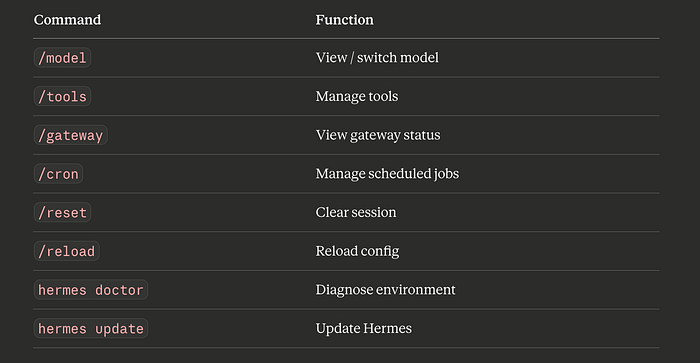
Quick Command Reference