

In the previous guide, I deployed the Wazuh SIEM platform on Kali Linux using Docker. The platform is now operational and ready to receive security events from endpoint systems.
In this article, I extend the SOC lab by installing the Windows agent and connecting it to the Wazuh server.
Agents allow Wazuh to collect security telemetry (logs) from endpoints such as operating systems, applications, and system logs.
Using the agent, the Wazuh server can monitor events such as:
- Authentication activity
- File integrity changes
- Malware detection events
- System configuration changes
- Suspicious behavior on endpoints
- And more…
By the end of this guide, the Windows machine will begin sending logs to the Wazuh platform, allowing the SIEM to detect and analyze potential security events. If you haven't set up a Windows VM yet, you can set that up using my previous guide 👇
Before continuing, ensure that your Wazuh server is already running. If you have not completed the setup yet, follow the previous guide on deploying Wazuh on Kali Linux with Docker👇
Confirm Windows Can Reach the Wazuh Manager
The first thing to do is ensure the Windows VM can communicate with the Wazuh Manager on my Kali. For this to happen, I will set both Windows and Kali to use a Host-only Network in my VirtualBox. This will make the VMs communicate with each other and my host machine, but they won't have internet access.
If you still need internet access in your VMs, you can set up two network adapters. Adapter one (NAT) for internet access and Adapter two (Host Only) for communication between the VMs.
I have done this, so I will now test the connectivity between the Windows VM and Kali.
- Open CMD as Administrator.
- Test connectivity to Kali's host-only IP (e.g., 192.168.56.101)
ping 192.168.56.101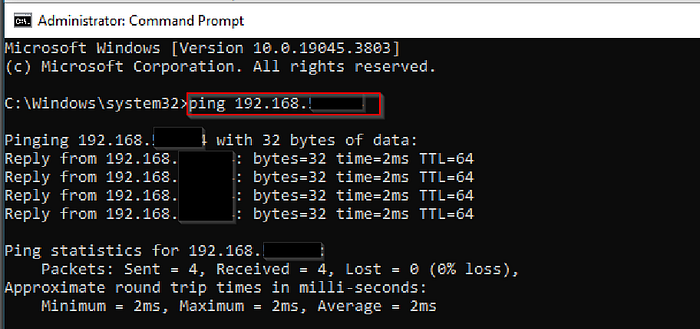
I verified that the Windows endpoint could communicate with the Wazuh manager using the host-only network. Successful ping replies confirmed the network configuration between the VMs.
Download and Install the Wazuh Agent
I downloaded the Windows Wazuh agent installer from the official Wazuh package repository. This installer allows the Windows endpoint to register with the Wazuh manager and begin sending system events.
I downloaded mine in my Documents folder. I'll be installing it using CMD Administrator.
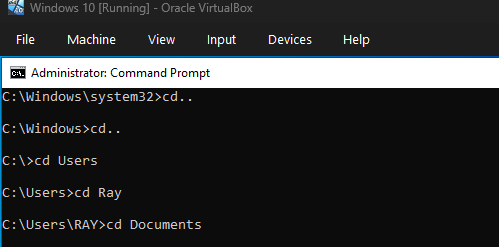
Once I opened my CMD as an Administrator, I noticed that I was in the Windows\system32folder by default, and I couldn't reach my Documents folder from there. So I had to go back using the cd.. command twice (to leave the two folders) and then go into the user folder cd Users\Raywhere I can find my Documents.

- Install silently and configure the Wazuh manager IP:
wazuh-agent-4.14.3-1.msi /q WAZUH_MANAGER="192.168.xx.xx"Inside the Documents folder, I installed the Wazuh agent silently (with the command above) and configured it to connect to the Wazuh manager on my Kali using the host-only IP. Using /qn allowed the installation to run without user prompts, streamlining the setup for multiple endpoints if needed.
- Start the agent from CMD:
NET START WazuhSvcI started the Wazuh agent service on the Windows endpoint to initiate communication with the Wazuh server. This ensured that logs would begin flowing immediately.
Confirm Agent Registration in the Wazuh Dashboard
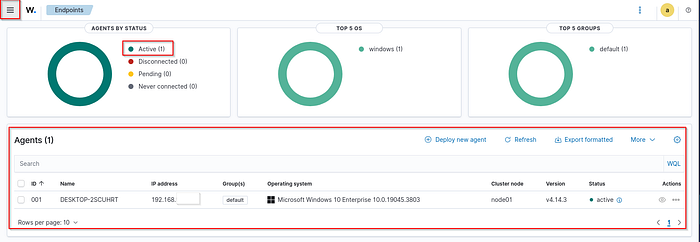
After starting the agent, I confirmed that the Windows endpoint registered successfully with the Wazuh manager by opening my Wazuh dashboard on Kalihttps://<Kali-IP>, and navigating to Wazuh → Agents . As seen in my screenshot above, the Windows endpoint should appear in the agent list.
Conclusion
In this post, I installed the Wazuh agent on a Windows endpoint using CMD and connected it to the Wazuh manager running in a Docker container on Kali Linux. I verified connectivity through the host-only network and confirmed agent registration on the dashboard.
With the Windows endpoint now connected, Wazuh is no longer just a setup; it's actively collecting and analyzing data. This is where things start to get interesting. Expect more setups from this SOC lab…
Have you ever connected an endpoint to a SIEM before? What challenges did you encounter?